Everyday workflows
Open your project from a shell with cd /path/to/project followed by mellow ..
The project folder is the workspace for file discovery, search and sessions.
The examples below use ordinary local files and need no AI account.
Edit a configuration file
Run mellow config.yaml from a folder containing your configuration file.
Use Ctrl+F to locate a setting, change its value and press Ctrl+S.
Mellow preserves indentation on Enter, but it cannot decide whether a
configuration value is valid for your application. Run your application's own
validation command after saving.
For example, practice on a file containing:
service:
  name: demo
  port: 8080
Find 8080, replace it with 8081, save and reopen the file to confirm the edit.
For repeated text in one file, Ctrl+H opens replacement with a preview.
Review the matches before applying. Undo with Ctrl+Z if needed, and save again
to write the correction.
Find files and text across a project
- Open a file:
Ctrl+O, type part of the filename (a folder narrows it:src/ma), select a result and pressEnter. A name that matches nothing opens as a new file at that path, saved when you pressCtrl+S;../xand~/xreach outside the project. Recently opened files are listed first, so the file you were just in is one keystroke away. - Browse:
Ctrl+Btoggles the file tree. It updates within about a second when files change, including files created with a command in the terminal. Entries that.gitignoreexcludes are dimmed: Quick Open and search skip them, but their exact name inCtrl+Ostill opens them. - Search text: press
Ctrl+Ftwice to search all project files, or use Search across project in the command palette. Search for a setting name such asserviceand open the matching location.
In a Git repository, file discovery uses tracked and untracked, non-ignored files. For discovered files already open with unsaved edits, project search uses the editor's text; other files are read from disk. The audit candidate also includes named unsaved open files. Unnamed drafts have no project path and are outside project discovery.
Default search is deliberately bounded: files over 2 MiB, binary files and unreadable
files are skipped; the scan has a 64 MiB total budget and a 2,000-result cap.
Watch the search summary for skipped or truncated results. A partial scan does
not prove a term is absent from the project. The candidate searches in a
cancellable worker, with query generations and include/exclude filters in
.mellow/search.json; see candidate workflows.
Keep two views open
Use Ctrl+O to open the files you need, then Ctrl+\ to split the editor.
F6 moves focus between panes. Search the palette for split to change the
orientation or close a split. Use Ctrl+PgDn / Ctrl+PgUp to move among tabs.
This is useful when comparing a configuration with its example or reading code
next to a test.
Run a command in the built-in shell
Ctrl+T opens the terminal panel. Run a normal shell command, such as pwd to
check the working directory, followed by your project's test or validation
command. Ctrl+T returns focus to editing.
Save first: an external command reads files on disk, not unsaved buffer text.
Inside the terminal, keys go to the shell; Ctrl+C interrupts a process.
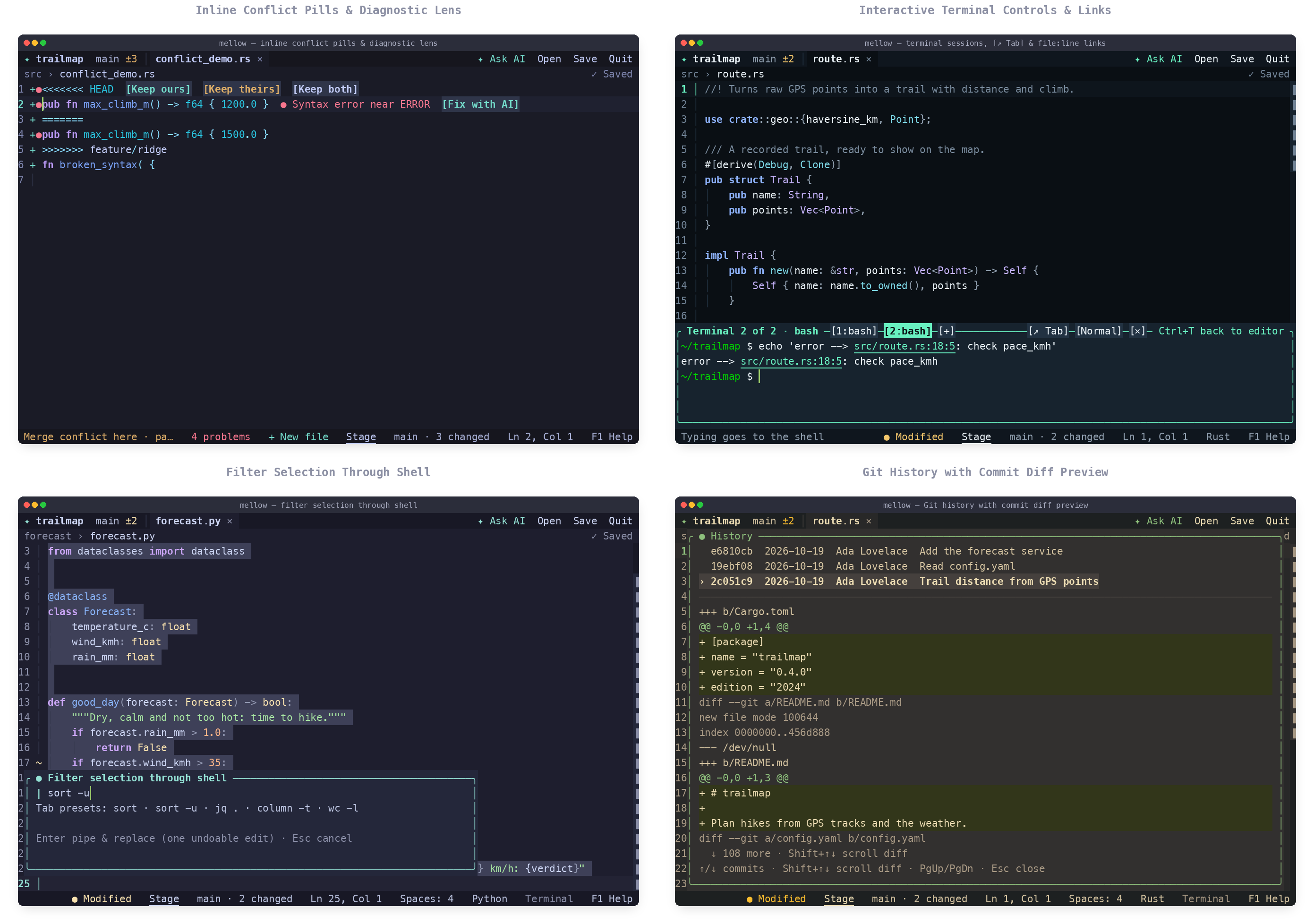
The terminal's top border shows clickable session pills ([1:zsh], [+]), a
● running indicator while a foreground job is active, and [↗ Tab],
[Normal]/[Tall]/[Max] and [×] controls; you can also drag the top border
to resize the panel. Compiler and test paths (file:line or file:line:col) in
terminal output are underlined—click one to jump straight to that line in the
editor. The palette also offers New terminal session, Next terminal session,
Resize terminal panel, Open terminal output in editor tab, Send
selection or line to terminal, Filter selection through shell command and
Close active terminal session.
Review and commit a Git change
This requires system git and a project that is already a Git repository.
Mellow uses your existing repository configuration and credentials.
- Edit a file and save it.
- Open
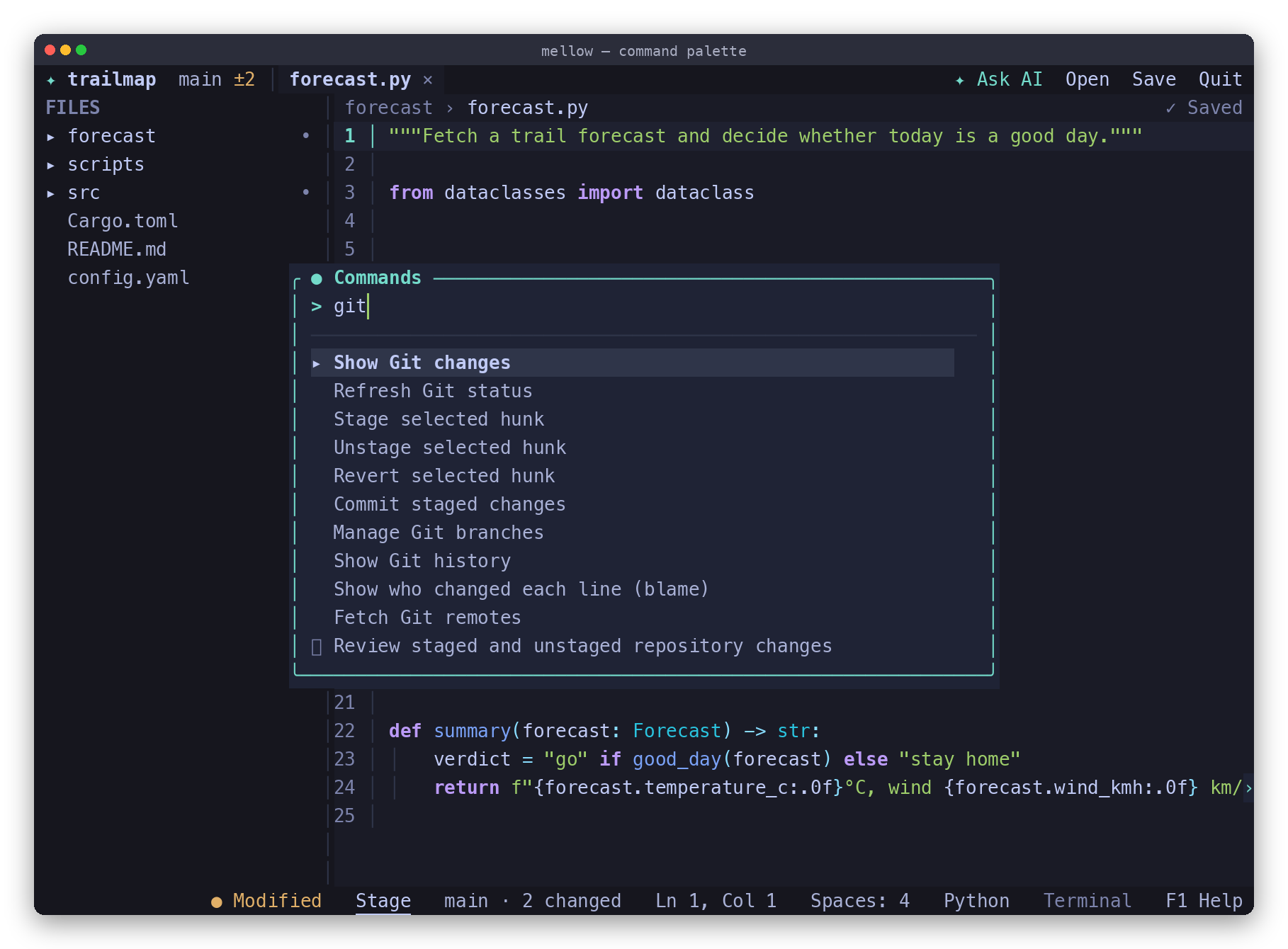
Ctrl+P→ Show Git changes and inspect the diff. - Use Stage selected hunk for part of a change, or Stage this file for the active file. Unstage this file keeps the edits but removes them from the next commit.
- Search the palette for
commit, review what is staged and enter a message. In the commit box,Ctrl+Gdrafts a message with AI from the staged changes (needs AI set up). Read the draft, edit it if you like, then pressEnter.
Staging and committing modify your repository. Revert selected hunk discards an unstaged change after confirmation; use it only when that edit is unwanted. Remote actions are separate: Fetch Git remotes, Pull (fast-forward only) and Push current branch. Pull will not create a merge, and push does not force. If authentication needs an interactive prompt, resolve it in your shell. Cancel Git operation stops an operation running in the background.
Jump to a function
In a Rust, Python or shell file, Ctrl+Shift+O (on terminals that send it; the
palette has Go to symbol everywhere) opens the list of functions, types and
other definitions. Type part of a name to filter it, then press Enter or click
a row. The breadcrumb above the editor ends with the definition the cursor is in,
so you always know where you are. The audit candidate also lists JSON/YAML keys and Terraform/HCL blocks and
attributes locally. Workspace symbols require a supporting trusted language server.
Resolve a merge conflict
When a file has conflict markers (<<<<<<<, =======, >>>>>>>), put the
cursor inside the block. The status line says so and names the three commands:
- Keep ours in conflict: keeps your branch's side.
- Keep theirs in conflict: keeps the incoming side.
- Keep both sides of conflict: keeps both, yours first.
Each choice is one edit, so Ctrl+Z undoes it. You can also click [Keep ours],
[Keep theirs] or [Keep both] directly on the <<<<<<< line in the editor
canvas. A side with nothing in it removes
the marker lines. Mark the file resolved from Git conflicts once no markers
remain.
Use the mouse
Click a row in the palette, Open file, Go to symbol, the references and the Git lists to select it; in Git branches and quick fixes, the second click acts. Click a button in a dialog to press it. A click outside a list closes it, and the wheel scrolls lists. A click inside a dialog that hits nothing does nothing, so a stray click never throws your work away.
Add code assistance when you need it
Language servers provide completion, diagnostics and navigation. Their capabilities determine whether actions such as rename, references and code actions are available. Format document is a language-server action; format on save uses an external formatter and is configured separately.
AI is optional. Explanations and selected-text proposals require a configured provider; proposed edits go through review. Inline suggestions are a separate opt-in feature that sends nearby code while you type.
See audit candidate workflows for Save All, checkpoints, trash restore, snippets, execution trust and the two new local tools.